Overheating is one of the most common — and most preventable — causes of computer problems. If your machine has ever suddenly shut down without warning, shown a blue screen, overheating error, or your laptop stopped working mid-task, there is a strong chance that heat played a role. Modern processors generate a surprising amount of heat, and when that heat has nowhere to go, the consequences can range from frustrating slowdowns to permanent hardware damage.
The good news is that most overheating issues can be avoided with a little regular maintenance and some sensible habits. At We Repair Computers Harwich, we see the results of neglected cooling systems every week. This guide is designed to help you understand why computers overheat, what warning signs to look for, and — most importantly — what you can do about it before serious damage occurs.
Why Computers Overheat in the First Place
Your computer relies on a carefully balanced cooling system to keep internal components within safe operating temperatures. This usually consists of one or more fans, heat sinks, and — in more powerful machines — heat pipes or liquid cooling. When any part of this system is compromised, temperatures rise quickly.
The most common culprit is dust. Over time, dust accumulates inside your machine and clogs vents, fans, and heat sinks. This restricts airflow and traps heat around components that need to stay cool. On laptops especially, even a moderate build-up can cause significant problems because the internal space is so compact. Other contributing factors include a failing fan, dried-out thermal paste on the processor, heavy software workloads, and simply using your device in a warm environment with poor ventilation.
Warning Signs Your Machine Is Running Too Hot
Catching overheating early can save you from costly repairs. Here are the most common signs that your computer is struggling with heat.
The fans are running loudly or constantly, even when you are not doing anything demanding. The underside of your laptop feels uncomfortably hot to the touch. Your machine is slower than usual, which can happen because modern processors deliberately reduce their speed to generate less heat — this is called thermal throttling. You are experiencing unexpected shutdowns or restarts, particularly under load. And perhaps most telling of all, you are seeing blue screen errors or freeze-ups that seem random but tend to happen when the machine has been running for a while.
If any of these sound familiar, it is worth acting sooner rather than later. Continued use of an overheating machine puts real stress on components like the CPU, GPU, and motherboard, shortening their lifespan considerably.
Clean Your Vents and Fans Regularly
One of the simplest and most effective things you can do is keep the vents and fans free from dust. For desktop PCs, this means opening the case periodically — every six to twelve months is a reasonable target — and using a can of compressed air to blow dust away from the fan blades, heat sinks, and vent grilles. Always do this in a well-ventilated space, and never use a household vacuum directly on internal components, as static electricity can cause damage.
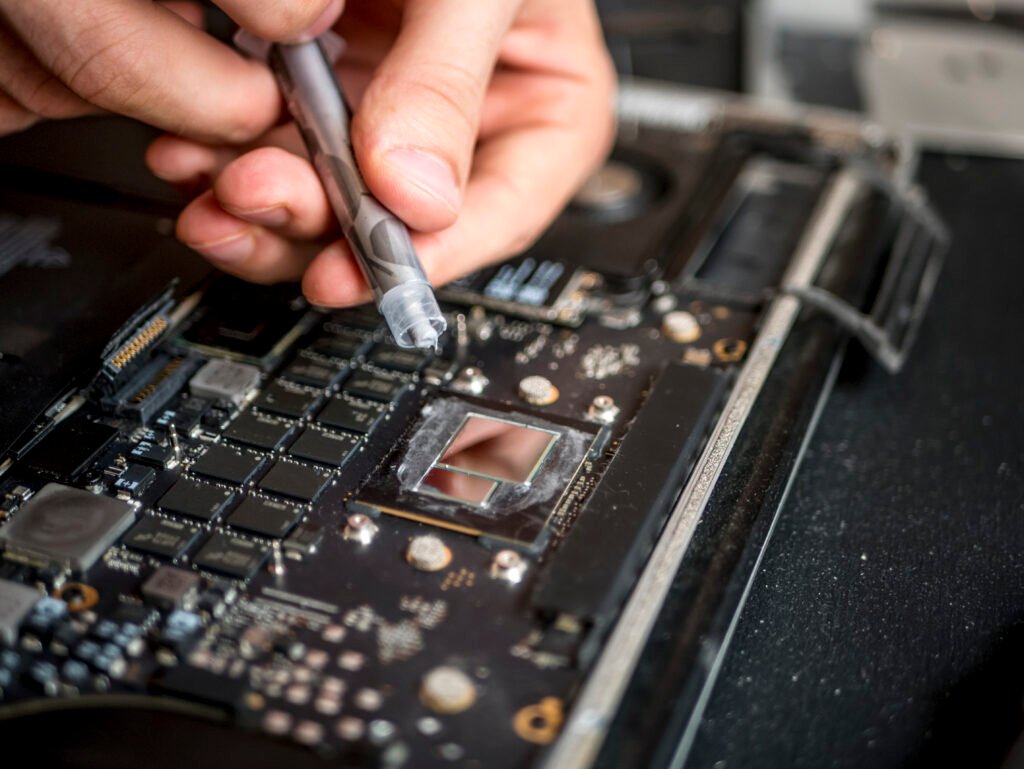
For laptops, the process is slightly more involved. The intake and exhaust vents are usually on the sides or base of the machine, and these can be partially cleared with compressed air without opening the device. However, for a more thorough clean — especially if your laptop is two or more years old and has never been serviced — it is worth having a professional open it up and clean it properly. Our Laptop Repair in Harwich service includes exactly this kind of preventative maintenance, and it can make a dramatic difference to how your machine performs.
Check and Replace Thermal Paste
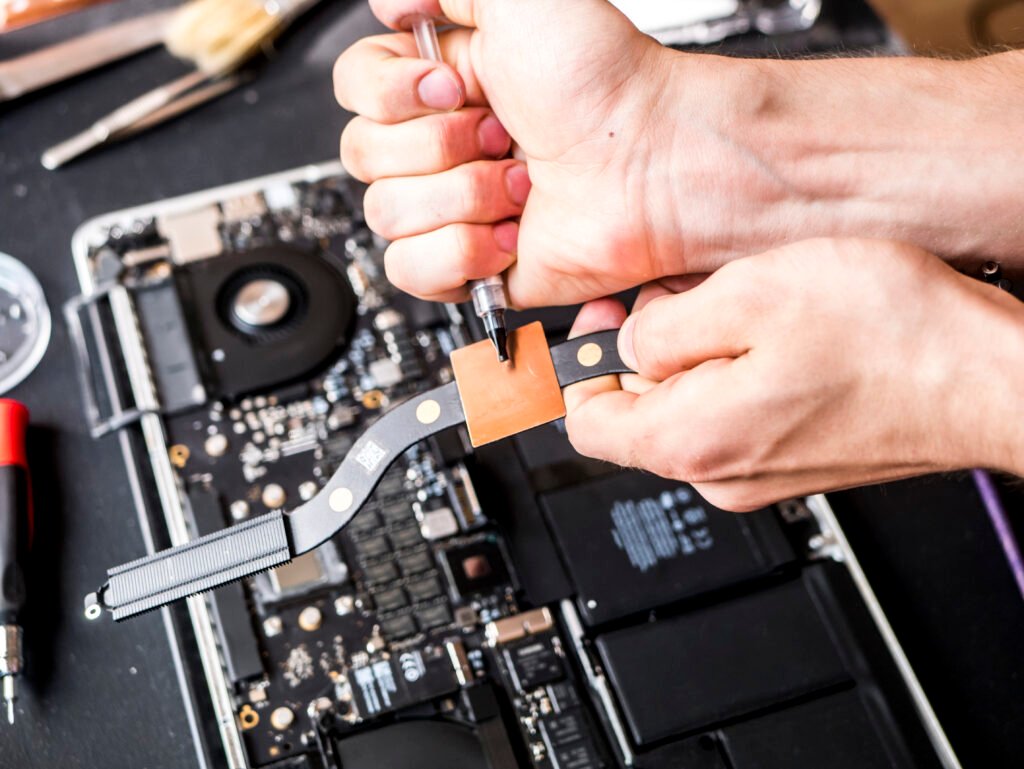
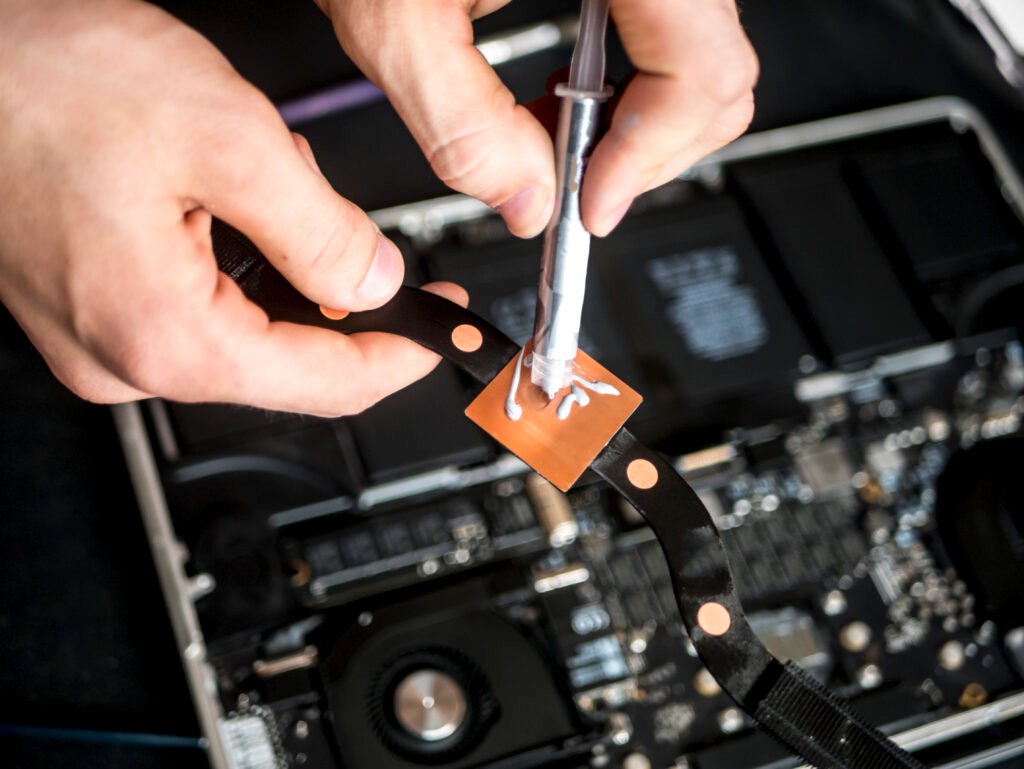
Thermal paste is the thin layer of heat-conducting compound applied between the processor and its heat sink. It fills microscopic imperfections in the metal surfaces and ensures heat transfers efficiently from the chip to the cooler. Over time — typically three to five years — this paste dries out and becomes less effective, causing temperatures to creep upward even when the rest of the cooling system is working fine.
Replacing thermal paste is a relatively straightforward job for a technician, but it requires carefully disassembling part of the machine. If your computer is older and you have noticed gradually worsening temperatures over time, this is likely the fix you need. It is one of the most cost-effective maintenance jobs you can have done, and the improvement in temperatures is often dramatic.
Where and How You Use Your Laptop Matters
Many people unknowingly make their laptop's cooling problem worse simply through where they place it. Laptops draw in cool air through vents on the base or sides, so using them on soft surfaces like beds, cushions, or carpets blocks these vents entirely. Even a few minutes of fully blocked airflow can push temperatures into dangerous territory.
Always use your laptop on a hard, flat surface. If you regularly work in bed or on the sofa, a lap desk or a dedicated laptop stand is a worthwhile investment. Laptop cooling pads — which sit underneath the machine and provide additional airflow via built-in fans — can also help, particularly for older machines or those used for demanding tasks like video editing or gaming. Additionally, try to keep your working environment reasonably cool. Direct sunlight or a warm room will push ambient temperatures up, leaving your cooling system with less headroom to work with.
Manage Your Software and Startup Programs
Overheating is not always purely a hardware issue. Software plays a significant role in how hard your processor works, and therefore how much heat it generates. Computers that are loaded down with unnecessary startup programs, background processes, or malware can run at high CPU usage even when you think they are idle — which means the processor is generating heat constantly.
Review your startup programs and disable anything you do not need running in the background. Keep your operating system and drivers up to date, as updates often include fixes that improve efficiency. And if your machine has been running unusually hot alongside other strange behaviour, it is worth checking for malware, which can push your processor to full load without you realising it. If you suspect an infection, our team offers a comprehensive virus removal service for exactly these situations.
For desktop users, it is also worth checking that your PC case has adequate airflow — a mix of intake and exhaust fans positioned properly makes a real difference in keeping internal temperatures stable.
When to Stop Trying to Fix It Yourself
Some overheating problems are straightforward to address at home, but others require professional attention. If your machine is already shutting down frequently, producing blue screen errors, or showing signs of hardware damage — such as graphical glitches, burning smells, or failure to boot — then it is time to bring it in rather than risk making things worse.
Opening a laptop without the right tools and experience can easily result in snapped connectors, stripped screws, or damage to delicate ribbon cables. If you are not confident with the internals of your machine, the sensible move is to let a professional handle it. Whether it is a thorough clean, a thermal paste replacement, a fan swap, or diagnosing deeper hardware faults, the team at We Repair Computers Harwich has the expertise to get your machine back to running cool and reliably.
Overheating is rarely a sudden catastrophe — it usually builds up gradually, giving you time to act if you know what to look for. Keeping your machine clean, using it on appropriate surfaces, managing your software, and having it serviced periodically are all straightforward steps that can add years to the life of your computer. If you are already noticing the warning signs and are not sure where to start, we are always happy to take a look and give you an honest assessment. Prevention is always cheaper than a replacement.
Need help with your computer?
Bring it to our Harwich workshop or call us to talk it through with a technician.